IRON NEST Controls and Inputs: A Troubleshooting Sequence
A step-by-step diagnosis for IRON NEST when a physical station, interaction prompt, map action or input layout seems unresponsive—without guessing hidden keybinds or game rules.
IRON NEST turns physical interaction into the core of its game loop. That makes a control problem more confusing than a conventional “button did not work” moment. A wheel may be locked because the mission is not yet at that stage. A map tool may appear unresponsive because the wrong mode is active. A lever may be available but set against stale information. A controller layout may be fine while Steam Input has assigned an unexpected command.
The fastest fix is to diagnose the failure at the right layer: objective state, station state, input focus, device mapping, or software state. Do not begin by inventing a hidden rule or repeatedly pressing random controls. The official listing confirms a chain of manual mechanisms, map work, calculation, charges and gunlaying; it does not publish a universal troubleshooting table for every control and platform. The current in-game prompts and Controls menu are the authority for exact bindings.
First: identify what is actually failing
Describe the problem in one sentence before changing anything. “I cannot interact with the map” is too broad. “The map opens, but the expected marker action does not appear after I received a new frontline message” is testable. “The elevation wheel is visible but does not move after I entered a calculation” is different from “my mouse or controller cannot select any object.”
Separate these cases:
- no interaction prompt is visible at the object;
- a prompt is visible, but the input does nothing;
- the interaction begins, but its value or state does not change;
- the station accepts input, but the next objective does not advance;
- all input is wrong, delayed or directed at a different interface element;
- the problem began after a device change, Steam Input change, suspend/resume or patch.
This classification prevents a mission-progression question from being treated as a hardware fault, and vice versa.
Check the objective and the preceding handoff
IRON NEST’s public material presents an ordered workflow: reports provide information, the map turns it into a plan, the ballistic process relates range to charge and elevation, and heavy controls execute the solution. A station may be present at all times without being the next meaningful thing to manipulate.
Read the most recent directive and frontline message again. Does it specify a target, shell, range-related task or a new condition? Is the target actually established on the map? Did you write down range and bearing separately? Did the calculator receive current values? Is the control you are trying to move part of the current task?
Do not treat this as blaming the player. It is a quick state check. A correctly functioning lever cannot advance a mission if the preceding information is incomplete. The controls and interface guide explains the station handoffs; the why firing solutions miss guide covers the same upstream-first logic for an incorrect shot.
Inspect the visible interaction state
Approach the object and read the live prompt, highlight or value. Do not rely on a prompt remembered from a trailer, a screenshot or a different input device. Look for whether the game indicates a hold, click, drag, scroll, rotate, menu confirmation, contextual action or blocked state.
If a prompt is absent, move your view slowly around the control and check whether another UI layer, map screen or menu still holds focus. Close only the screens you intentionally opened. If the prompt appears but the value will not change, look for a displayed prerequisite or an input mode that needs confirmation. Record the wording rather than guessing what it means.
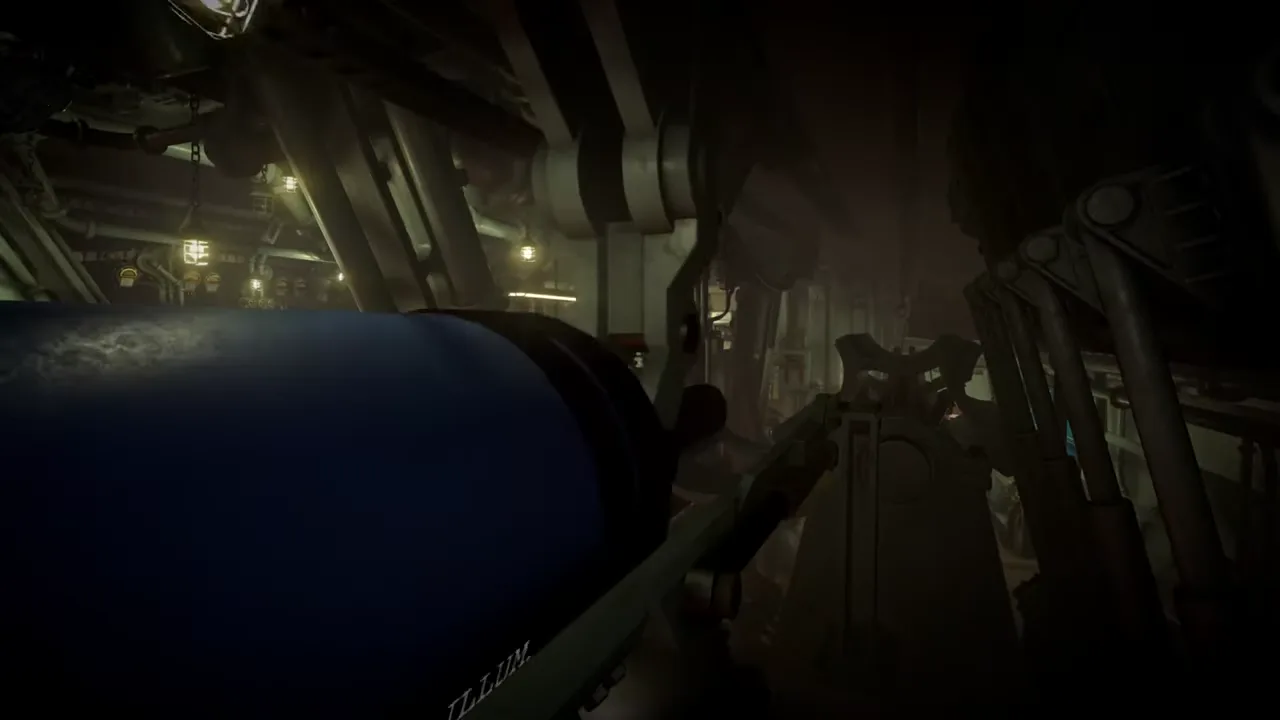
The official trailer frame used on this page depicts a dense physical workspace. It supports the general control context, not a claim that one exact object has the same interaction behavior in every version. Your current prompt is stronger evidence than the frame.
Verify keyboard, mouse and controller focus
If every interaction feels wrong, check the active device rather than each station. A controller may have taken focus after a cable reconnect. A mouse can be captured by an overlay. A keyboard layout can differ from the printed key names in an old guide. Steam Input can apply a community or custom template that changes an expected binding.
Open the current in-game Controls or Options screen if you can. Confirm which device the game recognizes. Check interaction, map, menu/back and movement inputs first. Test one input in a noncritical menu or safe station, then return to the mission. Avoid remapping multiple actions at once; you need to know which change fixed or created the issue.
For a controller, test stick drift, trigger response and any toggle/hold behavior. For mouse input, test pointer movement, left/right click and scroll in the same game session. For a keyboard, test whether a modifier key is stuck and whether the operating system is using the expected layout. These are general diagnostics, not claims about an IRON NEST-specific key list.
Steam Deck and Steam Input checks
On Steam Deck or a Steam Input configuration, begin with the active layout name. Restore a known default only after noting your current customizations. A community layout can be useful but may be designed for a different build or another player’s preferences. Check whether the virtual keyboard, radial menus or trackpad mouse are invoked as expected.
Then test readability and focus in the actual pressure points: the teleprinter, tactical map, calculator and a physical control. A layout that moves the character well can still be poor at map measurement or number entry. The Steam Deck verification guide offers a broader handheld test method; use this page when a specific interaction stops working.
Do not infer a Valve compatibility rating from Steam Input behavior or a Deck-filtered review. Record the device, SteamOS version, game version and layout when reporting a problem.
Reset in the least destructive order
If a state remains unclear, reset the smallest layer first. Close the current panel and reopen it. Step away and return to the control. Re-read the objective and rebuild the immediately preceding map or calculator handoff. Try the current default input before changing every binding. Save or reach a safe checkpoint if the game allows it.
Only then consider restarting the mission, relaunching the game or changing global configuration. A full restart can hide useful evidence. Before you do it, note the exact station, mission context, input device, visible prompt, expected result and actual result. This information makes a repeated fault report actionable and lets you compare behavior after a patch.
Never delete saves or configuration files as a first response. The symptoms described here are often caused by focus, contextual state or a single mapping. Preserve recoverable data unless a current official support instruction specifically identifies a corrupt file and gives a safe procedure.
How to make a useful bug report
If the issue repeats after a clean relaunch, write a compact report:
- game version and platform;
- mission, mode and current objective text;
- exact station or object;
- input device and Steam Input/layout status;
- steps from a fresh load to reproduce it;
- visible prompt, error or state value;
- expected behavior and actual behavior;
- whether it persists after restart or on the demo/full-game counterpart.
Attach a screenshot or short capture only when it does not expose personal account information. The report should describe what you observed, not speculate about code, design intent or a universal defect.
The dependable conclusion
When a control or interaction fails in IRON NEST, work from the mission state outward: objective, previous handoff, visible prompt, input focus, device mapping and then software state. The game is intentionally multi-station, so a blocked action may be a missing prerequisite rather than a broken button.
Use current in-game controls as the keybind authority, change one variable at a time and preserve a short record before restarting. That turns a frustrating machine-room moment into a reproducible diagnosis instead of a random-input loop.
Frequently asked questions
A station will not react. Should I restart immediately?
No. First confirm that the current objective and prior station state make the interaction relevant, then inspect the visible prompt and active input device. Restart only after recording what was attempted.
Can this guide provide one universal keybind list?
No. Bindings and controller layouts can vary by version, hardware and Steam Input configuration. Use the current in-game Controls screen as the authority for exact inputs.