IRON NEST Steam Cloud and Saves: Verify Sync Without Losing Progress
A cautious guide to Steam Cloud for IRON NEST: what the current Steam feature listing confirms, how to check a sync state and how to avoid turning a conflict into permanent lost progress.
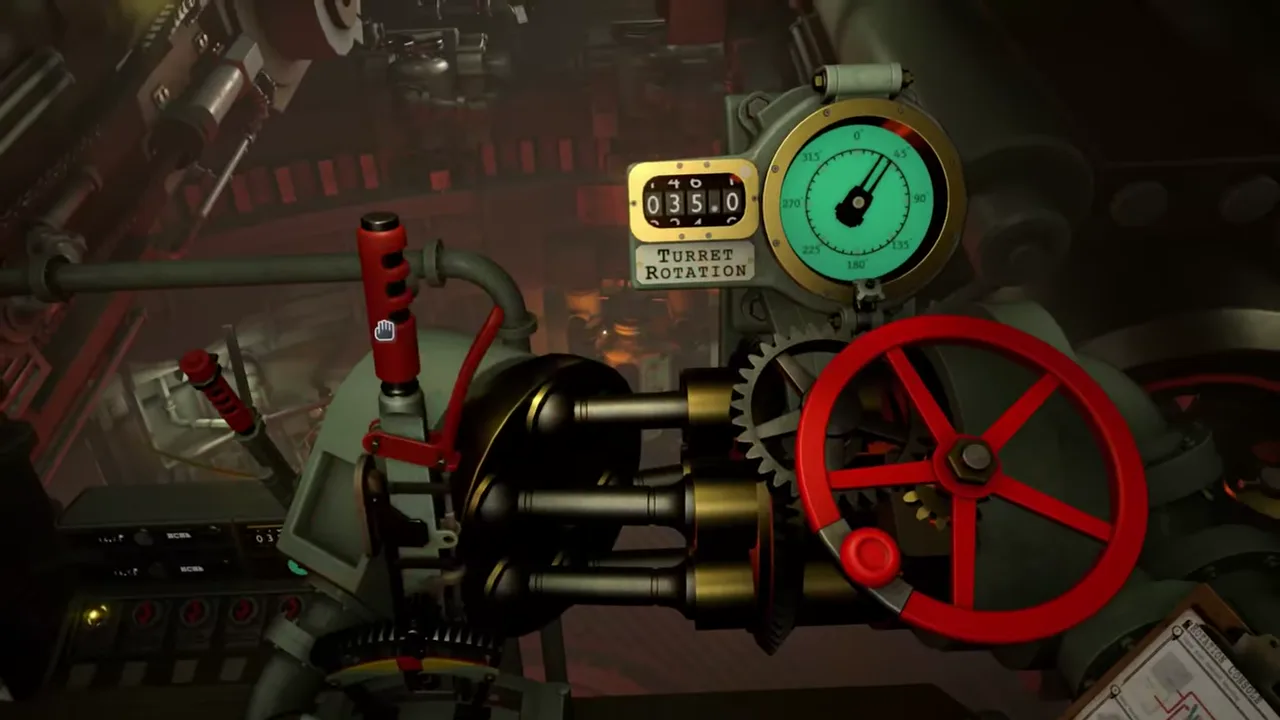
IRON NEST’s current Steam page lists Steam Cloud among its platform features. That is good news for players moving between PCs, reinstalling or protecting progress against a single local-device failure. It is not a promise that every save, setting, medal, achievement, mission state or control configuration is instantly synchronized under every network and device condition.
The safe approach to a sync question is preservation first, diagnosis second. Do not delete local files, reinstall the game or choose a conflict option until you know which device holds the progress you want to keep. Steam Cloud is a synchronization system, not a magical undo button.
What the feature listing establishes
The official IRON NEST Steam product page lists Steam Cloud. That confirms the game participates in Steam’s cloud-save feature. It does not publicly describe the exact save-file layout, which in-game settings are cloud-backed, whether every mission checkpoint syncs immediately, how large the cloud allocation is or how conflicts are resolved for this title.
Steam’s own support information explains the general concept: Cloud can store game data for supported titles and synchronize it between machines linked to the same account, but the current Steam client and its prompts remain the authority for a particular conflict. Do not treat a generic Cloud feature label as a replacement for the live account state shown by Steam.
The distinction matters when you are comparing a desktop, laptop or handheld. A platform feature can be present while a specific session has not yet finished uploading or downloading.
Before you switch devices
End the current session cleanly. Let the game reach a safe state and close it normally rather than force-quitting during a save operation. Then wait for Steam to finish any visible synchronization work. If your device is offline, note that the current session may remain local until connectivity returns.
Record which device has the progress you intend to preserve, what you just completed and the approximate time. This may sound excessive, but it turns a later cloud conflict from “which file looks familiar?” into “the desktop session after Mission X is the intended source.”
On the second device, let Steam complete its own update before launching. Avoid opening both devices into divergent offline sessions if your goal is a simple handoff. Two legitimate but different local saves are harder to reconcile than one saved session followed by a verified sync.
What a sync problem looks like
Symptoms can include a missing recent mission state, an older setting layout, a Steam Cloud conflict prompt, a game that opens with progress different from the last session or a device that has been offline. Do not assume the first visible state is corrupt. It may be a valid older copy, a client that has not updated or a different local state.
Start with facts. Which device last had the desired state? Was it online? Was the game closed normally? Did Steam show a sync completion? Has the other device been launched since? Are you logged into the same Steam account? Did the game or Steam client display a dated prompt?
These questions are more useful than searching for a random save-folder path. The public IRON NEST sources do not publish a supported manual save-file repair procedure, so a generic destructive file operation would be riskier than a careful client-level check.
Handle a conflict deliberately
If Steam presents a cloud conflict, read the current prompt closely. It may show timestamps, devices or local/cloud versions. Compare those with the progress record you made. Select the state that corresponds to the intended session, not merely the newest-looking time if you cannot explain it.
Before choosing, capture a screenshot of the prompt if allowed and make a note of both options. If the wording is unclear, stop rather than guessing. You can consult current Steam support with the exact conflict state. Selecting one side can overwrite the other, so a paused decision is often safer than a quick one.
Do not claim that cloud is always the “correct” version or that local is always newer. Network timing and offline sessions make either possible. The reliable choice is the one supported by your own timestamped activity and Steam’s current information.
Separate saves, achievements and medals
The Steam feature list also shows achievements, while the game advertises more than 100 in-game medals. These are different records from the save state. A visible Steam achievement does not prove your latest mission save has synced; a local medal screen does not prove that Cloud has uploaded; and a cloud conflict does not necessarily erase a platform achievement.
See Steam achievements and medals for that distinction. When diagnosing missing progress, specify what is missing: a campaign position, a setting, a medal, a Steam achievement, a challenge score or a control layout. Different data can have different storage and update behavior.
This prevents an achievement notification from creating false confidence about a save transfer.
Avoid high-risk fixes
Do not delete, replace or manually edit files as a first response. Do not repeatedly launch the game on multiple devices while a conflict is unresolved. Do not force-close Steam during a synchronization attempt. Do not reinstall simply because the second device looks older; reinstalling can add a second variable while the original state is still recoverable.
If you already know how to make a backup safely, make a copy of the relevant local data before taking a destructive step. Keep the copy outside the game’s active directory and label it with device and date. This is a general preservation principle, not an instruction to modify undocumented game files.
Use official Steam support or current developer guidance if a client-level conflict persists. A future game-specific support page can supersede this general advice; always prefer a current instruction that names IRON NEST and the version you are using.
A safe cross-device routine
- Finish an operation and allow the game to save normally.
- Exit to a stable point; do not force-close during activity.
- Confirm Steam has connectivity and wait for visible sync completion.
- Write down device, date and the progress milestone.
- On the next device, allow Steam updates before launch.
- Verify the expected progress before starting a new mission.
- If it differs, stop and inspect the Steam state rather than creating more divergent progress.
- Treat any conflict prompt as a preservation decision, not a nuisance dialog.
This routine takes little time and makes a serious loss far less likely.
The dependable conclusion
IRON NEST officially supports Steam Cloud. That supports cross-device save synchronization, but it does not eliminate timing, network and conflict risks. Preserve the intended state, let Steam finish syncing, verify on the next device and avoid destructive file changes while a discrepancy is unresolved.
Cloud works best when the player treats it as a system with state and evidence. A short progress note and a deliberate conflict choice are worth far more than an improvised deletion after the wrong device opens first.
Frequently asked questions
Does Steam Cloud guarantee that every IRON NEST state is always synchronized?
No. The Steam listing confirms Steam Cloud support, but sync timing, local changes, network status and device state can still create conflicts. Verify before choosing a file state.
Should I delete local files to fix a cloud conflict?
Not as a first step. Preserve the state, identify which device has the newer intended progress and follow the current Steam conflict prompt or official support guidance.