IRON NEST Performance and Settings: Measure Before You Tweak
An evidence-led performance troubleshooting guide for IRON NEST: how to interpret the official PC requirements, make controlled settings changes and report a reproducible performance issue.
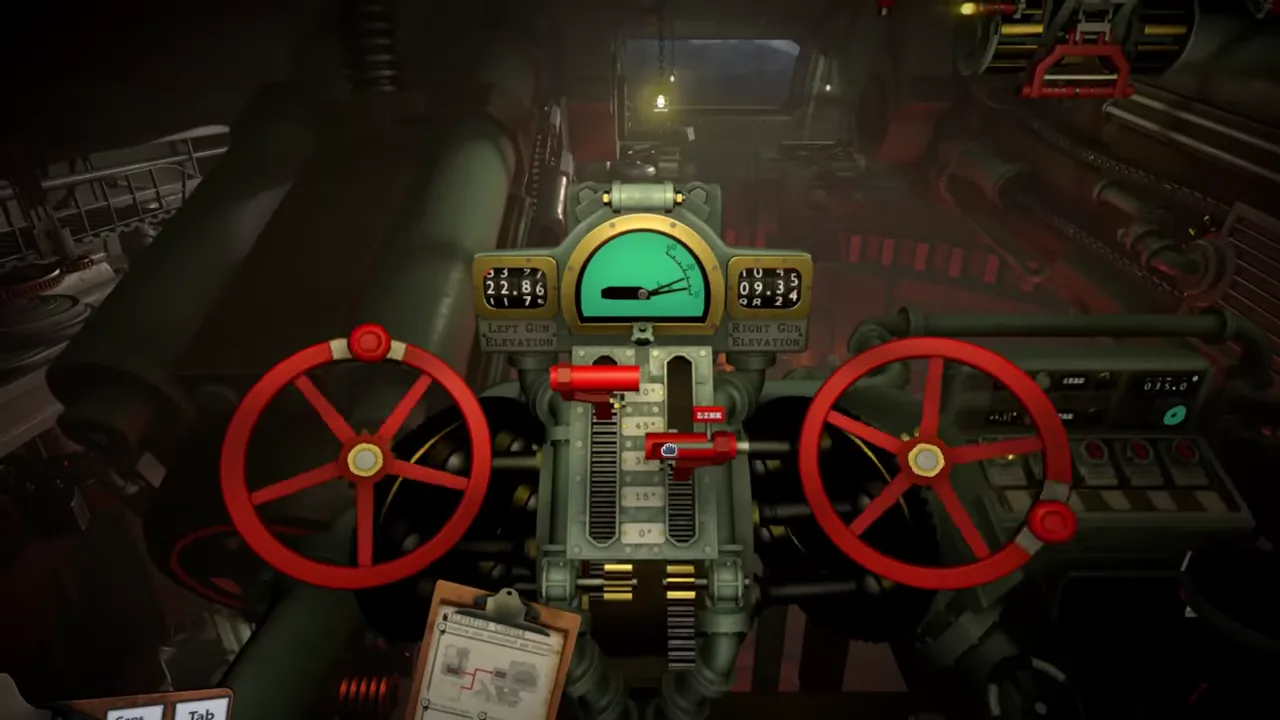
Performance problems in IRON NEST are especially disruptive because the game asks for close reading, map work and precise physical interaction. A brief frame-rate dip is not only visual; it can make a small teleprinter line harder to read, make a map action feel imprecise or interrupt a deliberate control sequence. The right response is not to chase a universal “best settings” list. It is to establish a reproducible baseline and change one cause at a time.
The current Steam page gives a useful official starting point. Its minimum requirements target an average of 30 FPS at 720p and low settings, name an Intel Core i5-4460 or AMD FX-8350, 4 GB memory and an Intel UHD/AMD Vega 8 class graphics baseline, and recommend a dedicated GPU for smoother performance. Recommended requirements name an i5-8400/Ryzen 5 2600, 8 GB memory and GTX 1060 6 GB/RX 580 8 GB class graphics. The listing explicitly says performance can vary with system configuration and thermal conditions.
Those specifications establish a target, not a personal guarantee. This guide turns them into a test method.
Start with a baseline, not a theory
Before changing settings, record your current environment: game version, operating system, CPU, GPU, memory, display resolution, laptop/desktop or handheld status, power mode and whether you are using overlays, recording software, mods or external controllers. Note your display refresh rate and any frame cap already active.
Then choose one repeatable test scene. A quiet menu may be useful for UI responsiveness, but it is not enough. Include at least one dense operator interior, a map interaction and a firing or camera movement moment if the current mission permits it. The goal is not an artificial benchmark; it is a sequence that represents the work you need the game to perform.
Observe frame pacing as well as average FPS. A stable lower rate can be more comfortable for a methodical map-and-control game than a higher average with intermittent stutters. Record symptoms specifically: “map movement stutters after opening aerial evidence” is more useful than “game is laggy.”
Read the official targets correctly
The 720p/low/30 FPS statement is a minimum target, not an instruction that every player should run those settings. If your system exceeds the recommended guidance, you may use higher settings. If it does not, the statement tells you where to begin an expectation, not which component is responsible for a problem.
Do not interpret the system requirements as a Steam Deck certification, a laptop guarantee or a promise about every resolution. Integrated graphics, memory configuration, storage state, background load, cooling, driver version and battery/power behavior can change results. The Steam Deck guide explains the handheld-specific verification boundary.
The official listing’s “dedicated GPU recommended” language is important. It does not say integrated graphics are forbidden; it says a smoother experience may require more graphics headroom. Treat that as context when choosing a baseline rather than as proof that any one stutter has a single cause.
Change one visual variable at a time
Open the current in-game graphics/options menu and take a screenshot or note of your baseline. Then adjust one setting category, return to the same test scene and compare. Do not lower resolution, shadows, effects, frame cap and display mode all at once. If the result improves, you will not know which tradeoff mattered; if it worsens, you will not know what to restore.
Prioritize readability and consistent input response. IRON NEST’s official workflow involves text, grid markings, calculation and physical readouts. A setting that makes the interior prettier but obscures numbers or creates unstable camera response may be a bad trade. Conversely, a lower setting that preserves clear text and stable interaction can be the better operational choice.
Use the labels the current build gives you. This page does not claim a hidden renderer, fixed anti-aliasing recommendation or exact draw-distance rule. Settings can change between versions, and the reliable evidence is what your installed game exposes.
Separate graphics, CPU and storage symptoms
You do not need a hardware lab to make a useful first distinction. If a problem occurs only when moving the camera through a complex visual scene, try a controlled graphics adjustment. If it occurs while the system is otherwise busy, check background CPU use, recording tools and power mode. If it appears as long pauses during loading or when assets first appear, note the storage device and available space.
Do not state that a symptom proves a specific bottleneck unless you have direct monitoring evidence. A player report should say “reducing this setting changed this repeated scene” rather than “the game has a GPU memory leak.” The former is reproducible observation; the latter is an unsupported diagnosis.
The official requirement list names storage needs and hardware classes, but it does not publish a performance-model explanation for every scenario. Preserve that boundary.
Check thermals and power state
The Steam page explicitly warns that thermal conditions affect performance. This is especially relevant for laptops and handheld PCs, where unplugged power modes, battery settings, blocked vents and sustained heat can alter clocks over a session. A run that begins smoothly and worsens after thirty minutes is a different report from a scene that stutters immediately.
Test with a consistent power profile and ventilation. Record whether the device is plugged in, whether the fan behavior changes and whether the symptom appears after a warm-up period. Do not modify hardware or use unsafe cooling practices; the goal is simply to make the test conditions explicit.
For desktop systems, the same principle applies: background tasks, room temperature and driver behavior can change a comparison. A single anecdotal FPS number is less useful than a controlled before-and-after note.
Verify the display and input path
Sometimes a “performance” complaint is really an input or display configuration issue. Confirm the selected resolution, display mode, refresh rate, frame cap and any operating-system scaling that affects text. If mouse movement feels delayed or map actions are inconsistent, test in a simple menu and review overlays or controller focus before blaming rendering.
The controls and inputs troubleshooting guide covers the device layer. Keep it separate from performance. A stable 60 FPS does not prove a controller layout is correct, and a changed layout does not prove a graphics setting fixed frame pacing.
Use the demo as a low-risk test
The full game page currently links to a demo, and the demo has its own Steam listing. If it remains available for your account and platform, use it to establish a baseline before buying or to compare an issue across the two builds. Record that they are different applications and may not have identical content or patch state.
Do not claim that a demo result guarantees full-game performance. It is a useful compatibility and comfort test for the core operator space, not a complete benchmark for every campaign, region or objective condition.
Make a report developers can use
If a performance issue survives controlled changes, report it with evidence. Include game version, platform, CPU/GPU/memory, resolution, display mode, settings, power/thermal state, exact scene or mission, reproducible steps, expected behavior and actual behavior. Add a short capture or frame-time graph if you already use a safe tool, but do not make a graph a requirement for a useful report.
Avoid broad claims such as “unoptimized” or “runs badly for everyone.” The strongest report is a small experiment: same scene, same system, one changed variable, recorded result. It gives developers and other players something concrete to test.
The dependable conclusion
IRON NEST’s official requirements provide a 720p/low/30 FPS minimum target and explicitly warn that configuration and thermals affect performance. Use that as a baseline, not as a universal prescription. Test a repeatable operator workflow, change one setting at a time and prioritize readable, stable interaction over arbitrary maximum settings.
When an issue remains, document your exact system and scene. A controlled observation is far more useful than a copied “best settings” list or a broad guess about why a complex machine room stutters.
Frequently asked questions
What performance level do the official minimum requirements target?
The current Steam page says its minimum specifications target an average 30 FPS at 720p and low settings, and warns that results vary by configuration and thermal conditions.
Should I copy someone else's best settings?
Use another player's settings only as a starting hypothesis. Hardware, resolution, thermals, drivers and build versions differ; change one variable at a time and measure your own result.